



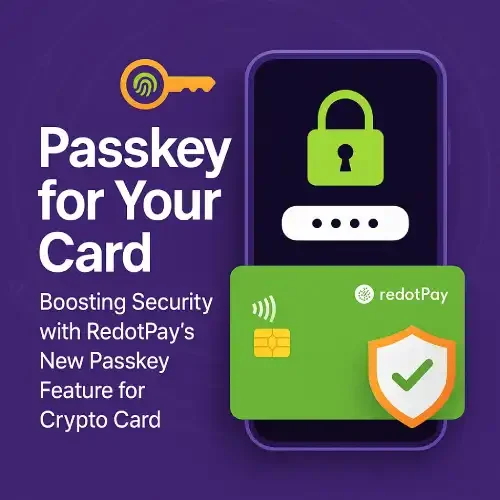
RedotPay Passkey for Crypto Card
Boosting Security with RedotPay’s New Passkey Feature for Crypto Card
What Is a Passkey?
A passkey is a cryptographic credential stored on your device (or synced securely via your platform account). Instead of typing a password or waiting for an SMS code, you approve with your device biometric. The website/app never sees your private key—only a one-time proof that you’re you.
Why it’s better than passwords/SMS:
- Phishing-resistant: Only the real RedotPay domain/app can request your passkey.
- No SMS interception: No SIM-swap or OTP forwarding risk.
- Faster sign-ins: Tap your biometric; you’re in.
- Fewer resets: No password to forget or leak.
What You Can Protect with Passkeys
- Account sign-in to RedotPay
- High-risk actions (e.g., creating a new virtual card, changing limits)
- Payment approvals and card freeze/unfreeze
- Payouts and KYC changes (where policy requires step-up authentication)
(Exact flows may vary by region and your risk settings.)
How Passkeys Work
- Register a passkey in your RedotPay security settings.
- Your device creates a key pair and keeps the private key locally (or in your platform’s secure enclave).
- When RedotPay asks you to authenticate, your device signs a one-time challenge.
- RedotPay verifies the signature with your public key and completes the action—no password, no SMS.
Setup Guide
- Update the app to the latest version.
- Go to Settings → Security → Passkeys.
- Tap Create Passkey and follow the prompt (Face ID, Touch ID, device PIN).
- Test sign-in on your current device.
- (Optional) Add a second device (e.g., laptop browser) for redundancy.
Pro tip: Keep 2FA enabled (e.g., authenticator app) as a fallback second factor.
Compatible Devices & Browsers
- iOS / iPadOS with Face ID/Touch ID (iCloud Keychain sync)
- Android with screen lock/biometrics (Google Password Manager sync)
- Desktop browsers supporting WebAuthn (Chrome, Safari, Edge, Firefox with platform authenticator)
- Security keys (e.g., YubiKey) if you prefer a portable hardware passkey
Backup & Recovery Best Practices
- Enable cloud sync (iCloud/Google) for cross-device availability.
- Add at least two authenticators: your phone + a hardware key or a second device.
- Maintain fallback: keep an authenticator app or recovery codes if RedotPay provides them.
- If you lose a device: remove its passkey from Settings → Security → Devices/Passkeys immediately.
Everyday Tips for Cardholders
- Use passkeys for daily sign-ins—it’s both faster and safer.
- Require passkey step-up for limit changes and new device logins.
- Keep spend alerts on; investigate any unknown approvals.
- When traveling, bring a backup authenticator (spare phone/security key).
FAQs
Do passkeys replace 2FA?
They can—passkeys are strong authentication. Still, we recommend keeping a secondary method during the transition.
Can I use passkeys on multiple devices?
Yes. Register passkeys on each device you use or enable cloud sync so your passkeys follow you.
What if my phone is lost?
Sign in on another trusted device, remove the lost device’s passkey, and add a replacement. Contact support if you’re locked out.
Are passkeys stored by RedotPay?
No. RedotPay stores only your public key; your private key never leaves your device.
Do passkeys work offline?
Authenticating requires a network connection to complete the challenge with RedotPay.
Why This Matters for Crypto Cards
Crypto card accounts are frequent targets for phishing and SIM-swap scams. Passkeys neutralize both vectors, cutting fraud and reducing false declines triggered by risk reviews—so you get safer approvals and smoother checkouts.